How to use the Workbench panels.
Nine proof panels that dock beside the chat, on demand.
- Panels nine, on demand
- Docks beside the chat
- Shared by you, Toad, agents
- Git via the gh CLI
- Open a panel — pull it from the dock without leaving the chat.
- Pick the right one — Preview, Files, Git, Terminal, and five more.
- Run the GitHub flow — branches, PRs, and merges via
gh. - Schedule jobs — put routine work on a cadence.
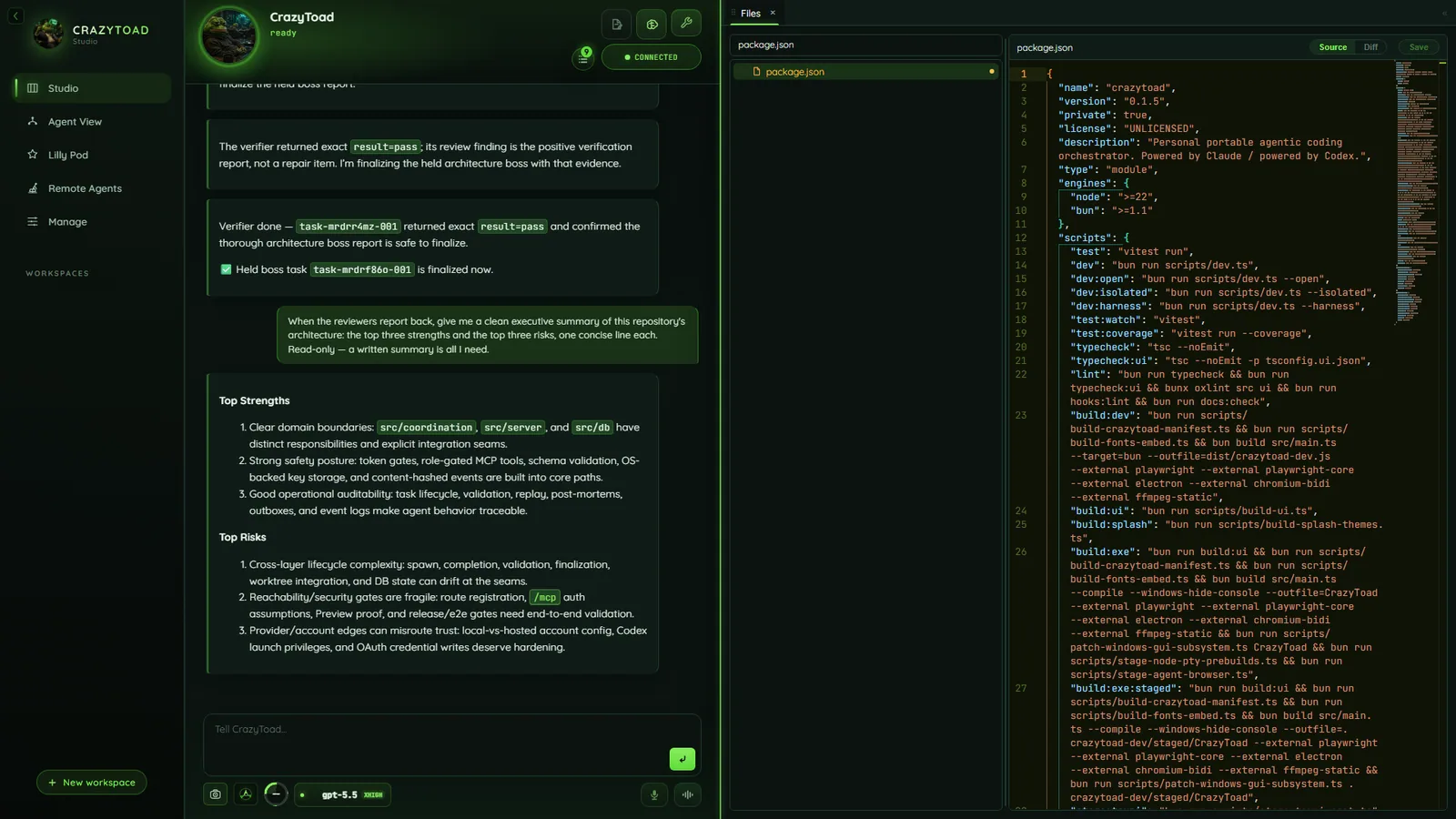
A docked panel (Files shown) beside the live chat and approval queue.
Open a panel from the dock
- Open what you need from the Workbench dock while you talk to Toad.
- The chat stays centered — the panel comes to you.
It docks beside the chat
- Panels open alongside the conversation, not over it.
- Toad and agents inspect the same rendered page, file, or diff you see.
- Dismiss after the proof; re-open any time.
Reach for the panel that fits the step
- Preview for visual QA, Files and Git for source, Terminal for a focused check.
- Add Search, Problems, Schedule, Cost, or Review as needed.
- The chat lives in Studio; the Workbench is the proof beside it.
Tip
Preview is the shared browser — you, Toad, and agents see the same pixels, not guesses over screenshots.
Run the full GitHub flow via the gh CLI
- Branches, PRs, and merges run through the
ghCLI from the Git panel. - Each task gets its own worktree, so parallel agents never collide; finished work integrates back to main automatically.
- You review the change in the panel before it lands.
Schedule jobs and loops
- Set one-shot or recurring jobs and loops from the Schedule panel.
- Output lands beside the conversation that set it up.
Panel reference
PreviewLocal pages and visual proof
FilesInspect the active workspace
Gitgh-backed PRs and worktrees
TerminalFocused checks and scripts
SearchSymbols, docs, and text
ProblemsKeep errors visible
ScheduleOne-shot and recurring jobs
CostTrack spend while work runs
ReviewKeep decision work close